How to buy and activate
The wallet address and amount in the pictures are examples. Always send the amount and to the address shown on YOUR order page.
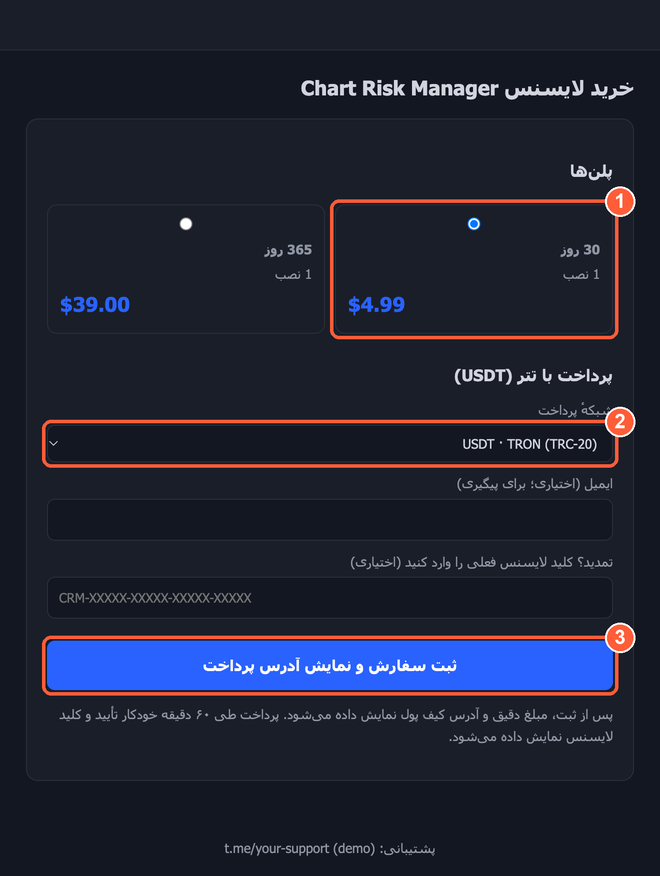
1. Buy
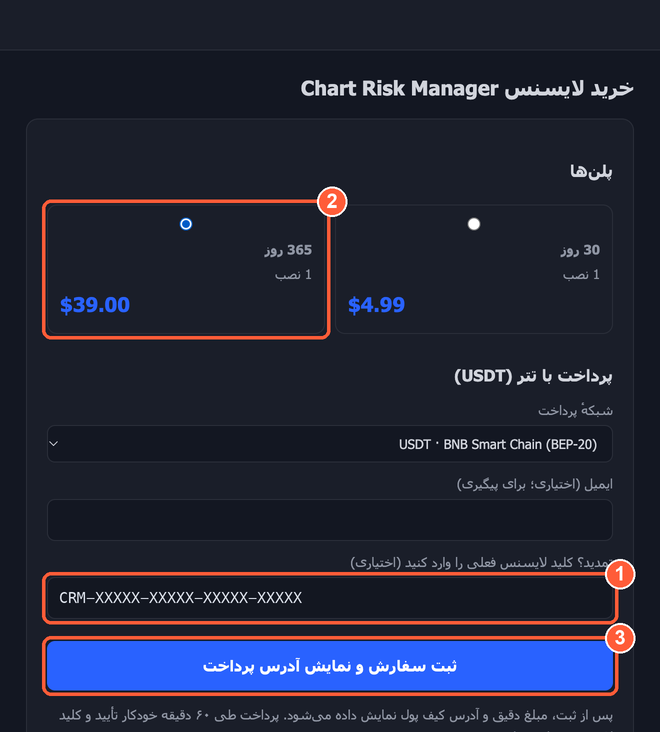
- Choose a plan (length and number of installs).
- Choose the USDT network. TRON (TRC-20) and BEP-20 have low fees; ERC-20 is expensive.
- Press "Place the order and show the payment address". The e-mail is optional (for follow-up only).
2. Pay
- Send exactly this amount, every decimal. Its last digits identify your order.
- Send it to this address: copy it or scan the QR with your wallet (don't type it). The QR holds the address only: type the exact amount yourself.
- Only on this network, and only USDT.
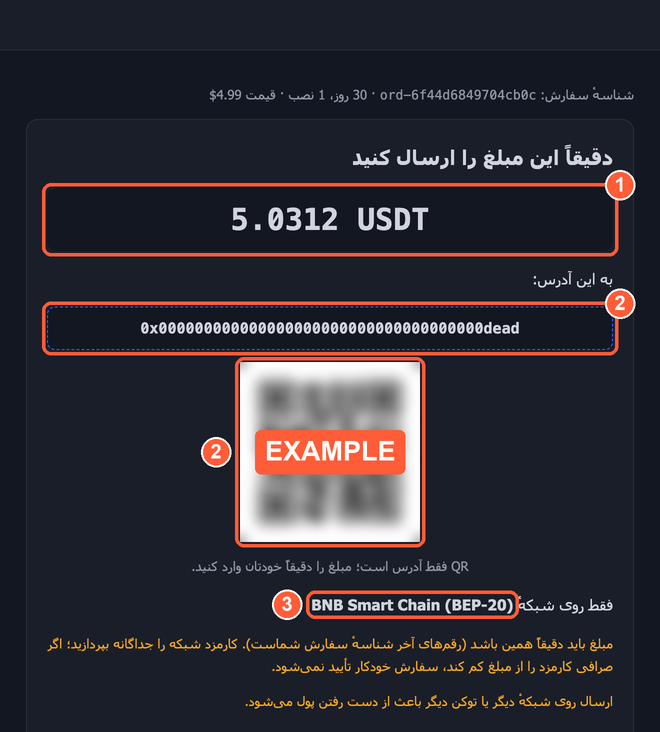
Withdrawing from an exchange? The exchange takes its fee from the amount. Enter it so that the amount received equals the order amount exactly.
You have 60 minutes. The page checks again every 20 seconds; the payment is usually confirmed a few minutes after you send it. Keep the page's address.
3. Get the key
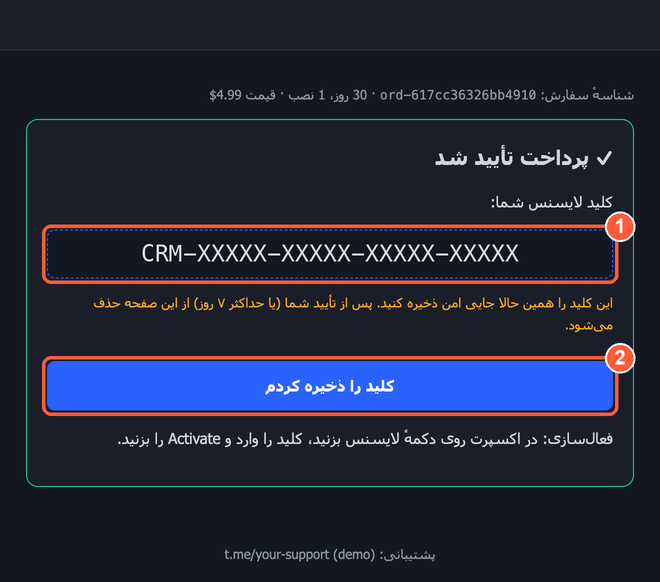
- Copy the licence key and keep it somewhere safe.
- Press "I saved my key". The key is then removed from the page (after 7 days at the latest).
4. Activate in the EA (MetaTrader 5)
- Once: in MetaTrader open
Tools › Options › Expert Advisors, tickAllow WebRequest for listed URLand add the licence server address (the EA shows it when it is needed). - Attach the EA to a chart.
- Press the licence badge at the top of the EA panel (1), enter the key under "Licence Key" (2) and press Activate (3).
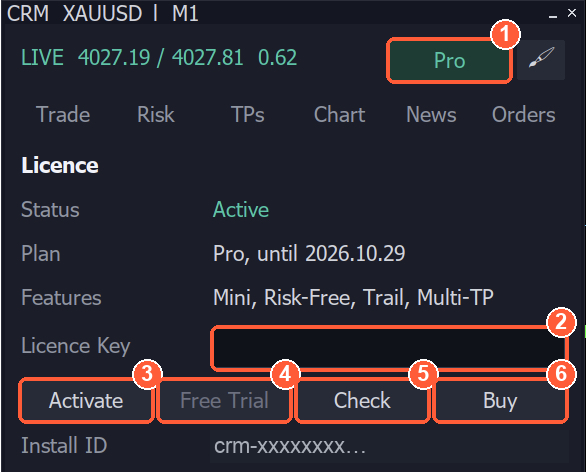
4 Free Trial: the free trial (grey while a licence is active) · 5 Check: refresh the licence now, e.g. after a renewal · 6 Buy: shows this shop's address.
The licence is tied to the trading account you activate it on.
Free trial
In the EA's licence view press Free Trial: 7 days with every feature, no key and no payment. Each trading account and each install gets one trial, and a trial stays on the account it started on.
Renew
- On the shop page, enter your current key under "Renewal?".
- Choose the plan.
- Place the order and pay as for a purchase.
The key stays the same. The days you buy are added to the end of your licence (when it has not ended yet).
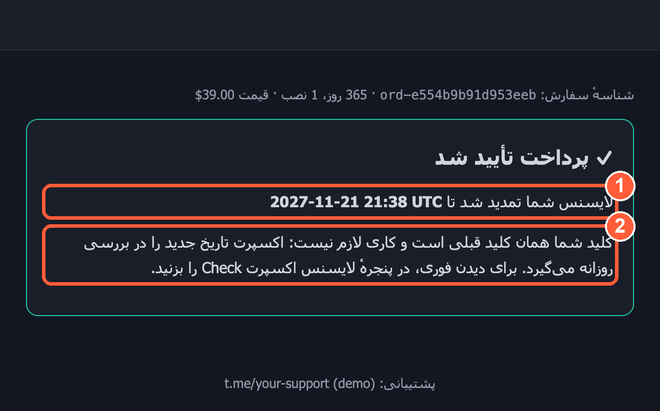
The EA picks up the new end at its daily check. To see it now, press Check in the licence view.
FAQ
I sent a wrong amount / paid late / the exchange took a fee.
The payment is not confirmed automatically, but it is recorded and not lost. Send the order id and the transaction id (TXID) to support; it is reviewed and confirmed by hand.
I sent on another network or another token.
Tell support, but it may not be recoverable. Always check the network and the token before sending.
How long does confirmation take?
Usually a few minutes: about a minute on TRON, a little longer on BEP-20 and ERC-20 (the network confirms a few blocks first).
I lost my key.
If you still have the order page and did not press "I saved my key", the key is there for 7 days. Otherwise contact support with the order id or your e-mail.
I changed my trading account.
A paid licence moves with you; press Check in the EA. A free trial stays on its first account.
The EA says "all seats are in use".
Every install of the licence is taken (for example after changing computers). Contact support to free the old install.
What happens when the licence ends?
You get a few days of grace. Then the Pro features (mini panel, risk-free, trailing stop, several take-profits) lock. The lock never closes an open order or position.
What data is kept?
The order and its transaction, your e-mail (if given) and part of your IP address against abuse. The payment goes straight to the seller's wallet; nothing about your wallet is stored.